
Stars replaces detected stellar signal with an estimate of the surrounding background. It can help a meteor, aircraft or satellite stand out without stars competing for attention.
Here you want to remove some objects and keep others. Start with None and check only Stars; leave your subject unchecked. Then inspect the corrected photo and a new stack, since small remnants can become more visible when many photos are combined.
If you want stellar trails, leave this option off. To reduce grain while keeping stars, use Align stars to reduce noise.
Remove stars, step by step
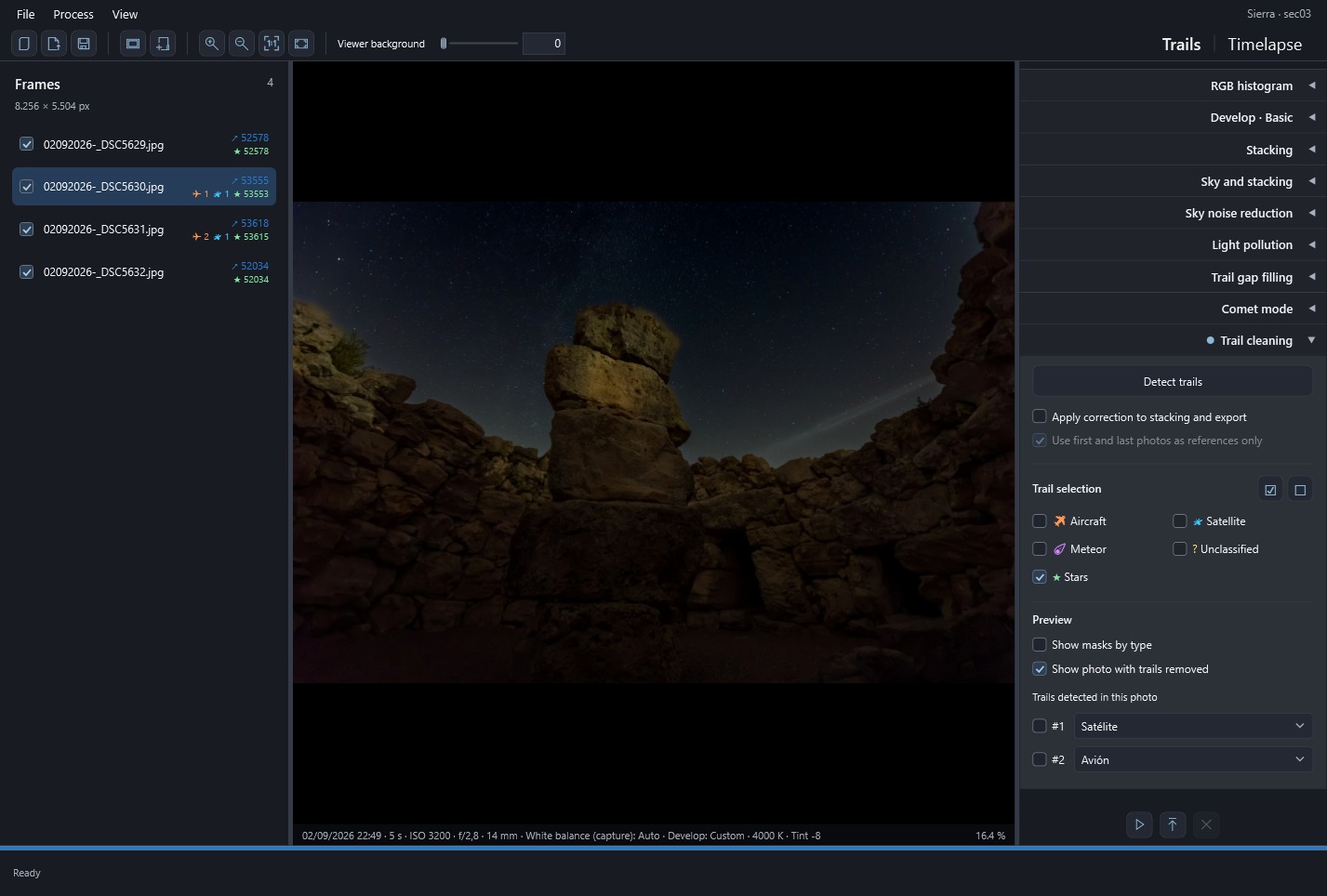
Find the option under Trails → Trail cleaning → Trail selection → Stars. Enabling it replaces detected stellar signal with an estimate of the local background. Follow these steps to apply it while retaining the aircraft, satellite or meteor you want to emphasize:
- Import at least three consecutive, similarly framed photographs and click Detect trails. This also prepares stellar detections.
- Uncheck aircraft, satellites or meteors you want to keep. Start with None, then enable only Stars. Avoid All for this purpose.
- Enable Show photo with trails removed and hide masks to review the selected photograph. Stars use one global selection; there are no per-star controls in the candidate list.
- Check bright and faint stars, elongated trails and landscape edges. Residual signal or changes to nearby detail are possible; complete stellar removal and preservation of every texture are not guaranteed.
- Enable Apply correction to stacking and export and stack again. Timelapse can also use this correction because it shares cleaning selection.
- Decide whether to include the first and last photographs. Stellar removal can be previewed at the endpoints using the adjacent photograph; aircraft and satellite cleaning still needs neighbors on both sides. Use first and last photos as references only excludes the endpoints while correction is enabled.
Stars starts disabled. Once you have reviewed the result, save the project to retain your selection. Remember that this is an automatic replacement of signal: the tool neither identifies objects astronomically nor lets you erase them individually by hand.
 Enlarge screenshot ↗