
Trail cleanup removes aircraft, satellite passes or other objects you do not want in the image. The app finds candidates and suggests a type; you choose which ones to remove. A meteor may be the best part of the night even if it appears among the detections.
There are two views to help you review:
- Show masks by type marks where trails were found. Color helps you locate them.
- Show photo with trails removed shows the correction. Hide the masks to see it clearly.
Each candidate's checkbox determines removal. Changing its type alone does not retain it: check that box too. If a correction damages a star or the horizon, uncheck the candidate and compare with the original trail.
Detect and review, step by step
- Import at least three consecutive frames with approximately fixed framing. Short trails may require more consecutive observations.
- Click Detect trails. Cleaning need not be enabled to analyze. Wait for temporal validation before judging the final detections.
- Browse frames. Show masks by type uses orange for aircraft, cyan for satellites, violet for meteors and yellow for unclassified trails.
- Check/uncheck individual candidates and correct their type using the selector. Classification is an estimate, not a verified astronomical identification. Uncheck meteors or anything you wish to preserve.
- All/None and the type checkboxes affect existing and future detections. All also enables Stars: uncheck Stars again to preserve the starry sky. A mixed state means individual exceptions; clicking it selects all candidates of that type again.
- Show photo with trails removed previews an individual correction when a valid detection and two included neighbors exist. Hide colored masks to compare the image unobstructed.
- Enable Apply correction to stacking and export, initially off, then stack/export. Missing or outdated analysis is performed first.
What happens to the first and last photographs
To clean an aircraft or satellite trail, the app compares the photograph with an earlier and a later neighbor. At either end of the sequence, one of those references is missing, so the same correction is not possible.
Use first and last photos as references only lets those two photographs support cleanup of the inner frames without contributing to the final stack or video. The preference is initially checked, but takes effect only when cleaning is enabled and at least three photographs are available. If you need the endpoints in the result, uncheck it and inspect any trails that remain in them.
When to run detection again
Changing the included photographs can require a new analysis because the available references change too. Run detection again after editing originals in another program as well. A new detection replaces your previous review, so finish preparing the sequence before spending time classifying candidates.
Assess a difficult correction
Look closely at weak, curved or overlapping trails, and at areas where the reference photographs also contain passing lights. Cleanup may be incomplete in these cases, and glow extending beyond the trail mask can remain. If a correction removes detail you want to keep, uncheck that candidate and compare again.
Temporal cleanup does not support editing individual trail segments manually or defining a foreground mask specifically for that correction. The sky, development and pollution masks described later control other tools, so they cannot limit this correction.
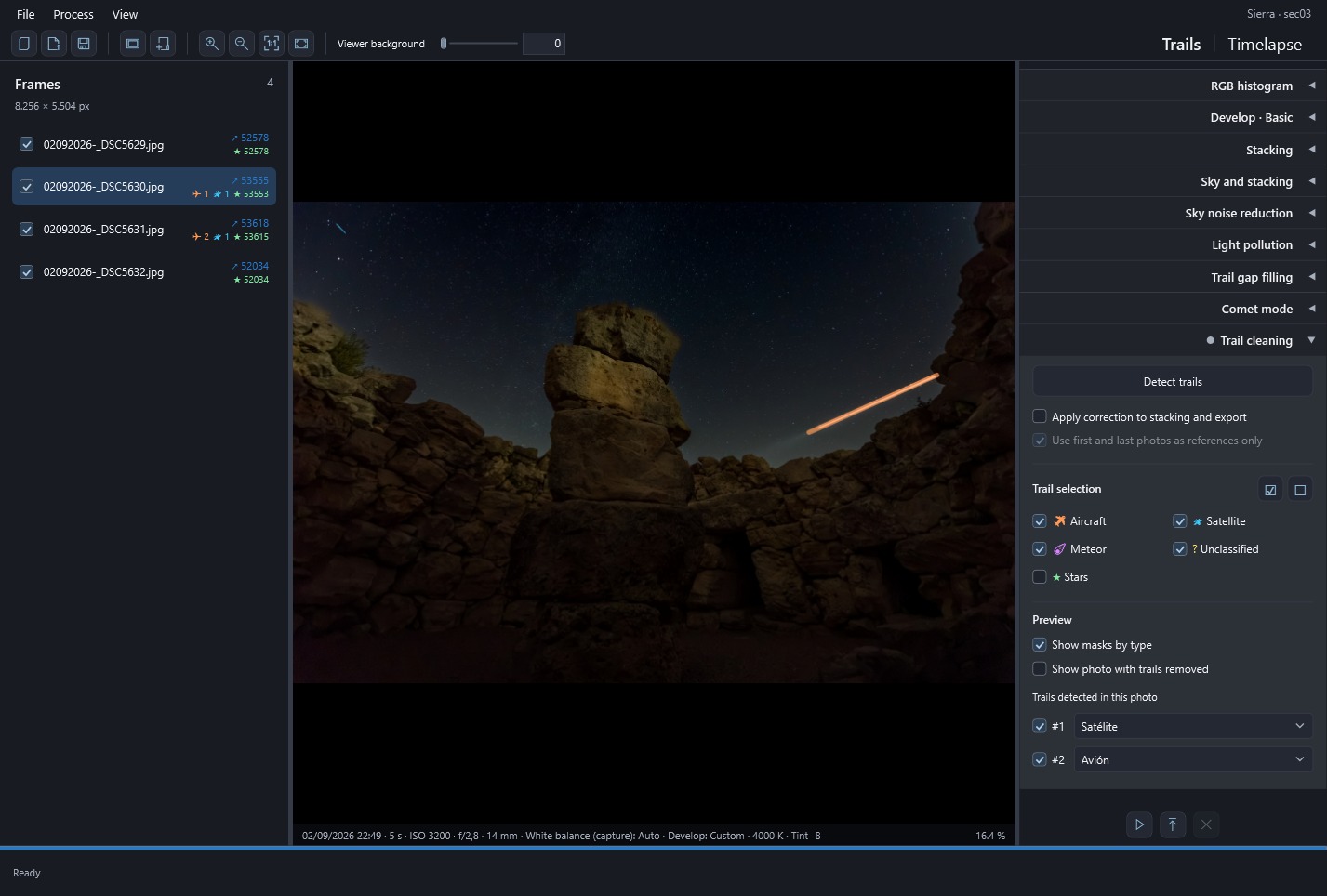 Enlarge screenshot ↗
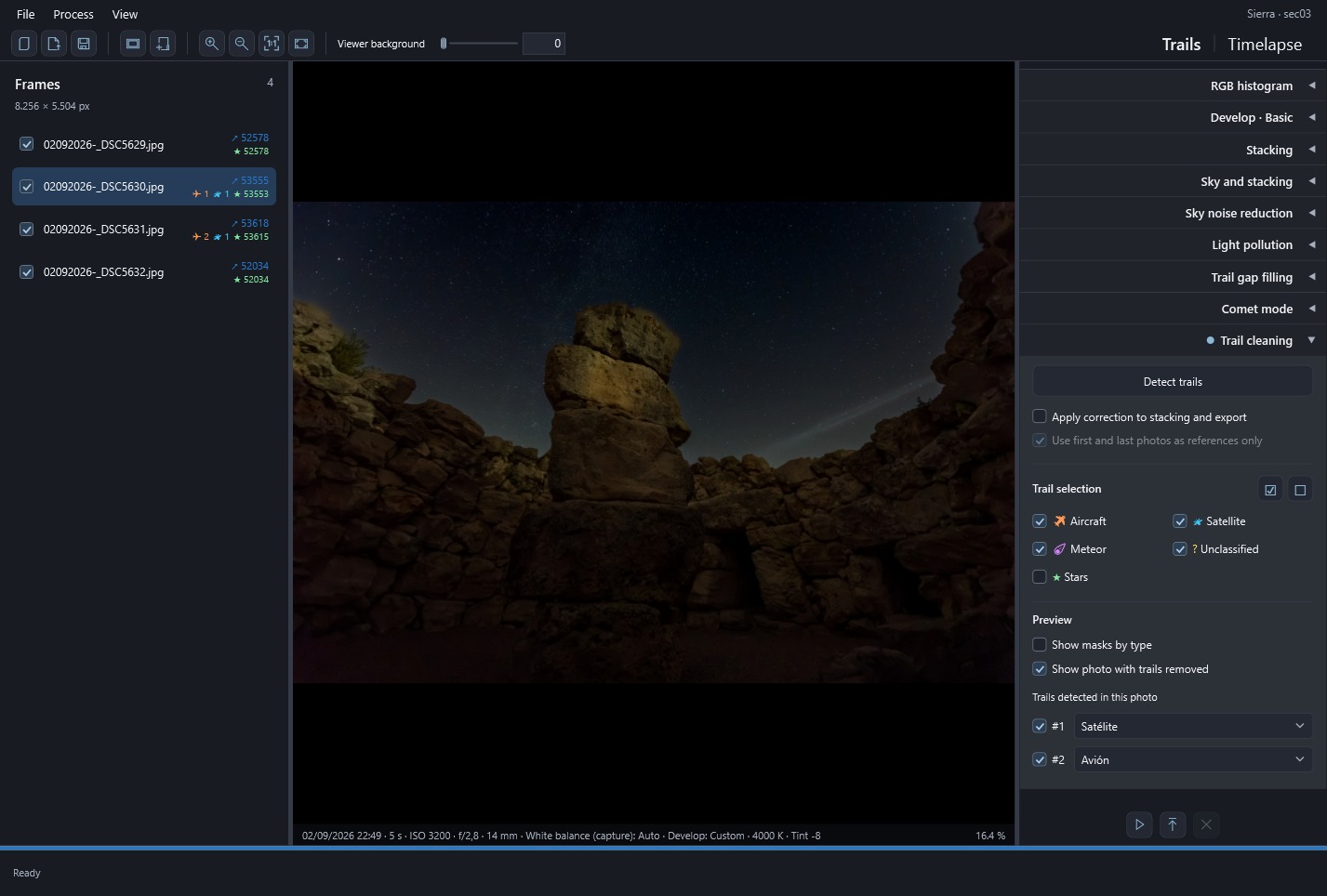 Enlarge screenshot ↗