
Give trails a comet shape
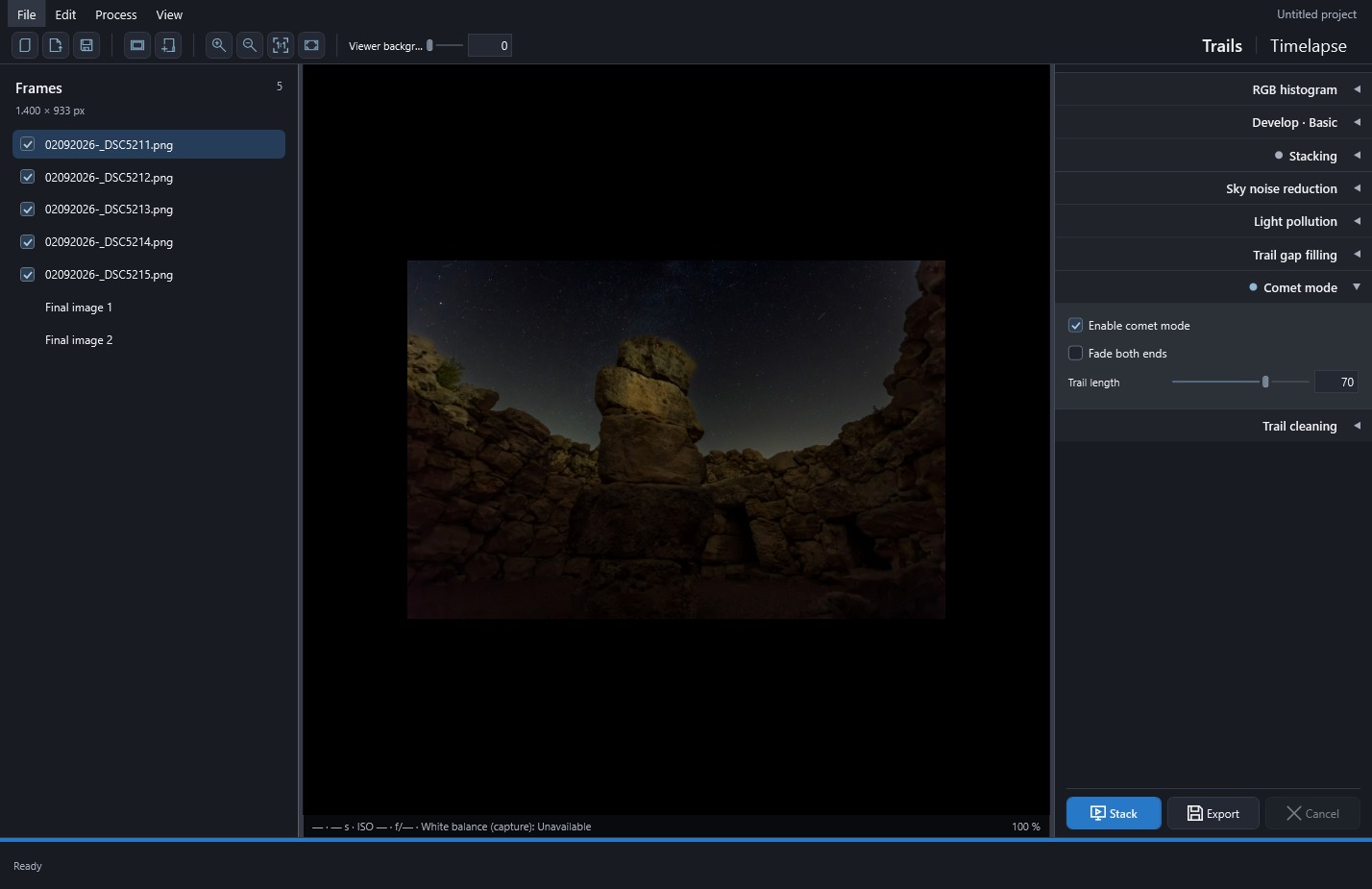
Comet mode gives trails a bright head and a tail that fades away. Use it to suggest movement along the arcs. The name describes that shape; it does not search your photos for comets.
- Stack a baseline with Sky on Lighten and comet off. Define a sky mask if the landscape needs protection.
- Enable Comet mode. Start at 70% Trail length with Fade both ends unchecked.
- Stack again and compare heads and tails at 100%. In normal order, the last processed photo supplies the bright head.
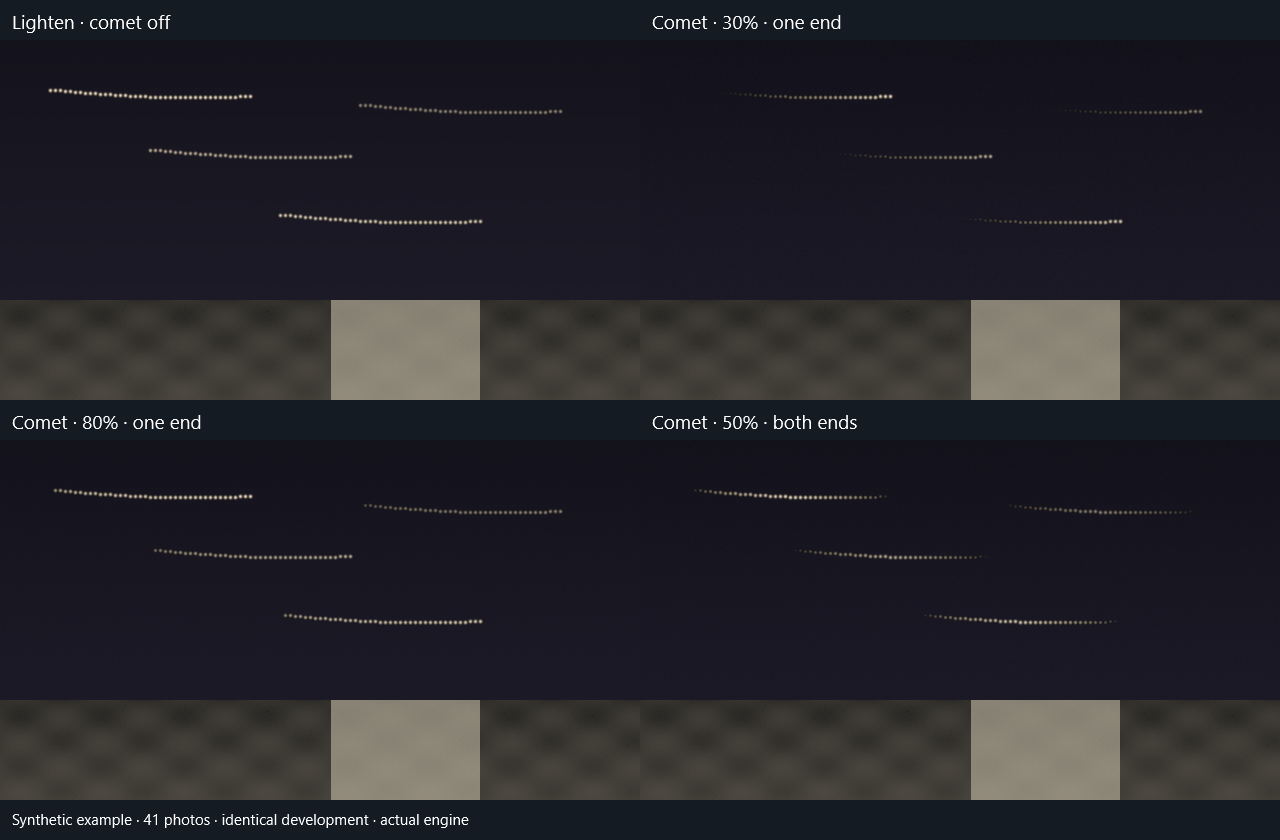
- For an apparently shorter tail and a stronger head, try 30–50%. To retain more visible path, try 80–90%. These are starting points, not guaranteed lengths.
- To put the head at the opposite end, enable reverse processing and restack. For a bright center with soft ends, enable Fade both ends.
| Choice | Expected effect |
|---|---|
| Low length | Stronger attenuation: much of the tail can disappear into the background. |
| High length | More of the path stays bright; fading becomes less pronounced. |
| 50% length | Linear fading of frame weights; perceived brightness also depends on development. |
| 100% length | No attenuation; useful for comparison with ordinary Lighten. |
| One end | Head at the end of processing order, tail toward the beginning. |
| Both ends | The middle of the sequence remains brightest; beginning and end fade. |
| Reverse order | Changes which end is recent. With both ends, the fading pattern is symmetric. |
As you reduce length, inspect faint stars too: their tails can disappear into the background before the brighter ones. The percentage changes brightness weights, so it does not correspond to an exact cut in pixels or arc length.
You need enough temporal path to judge the shape. One photograph cannot provide it, and two with both ends enabled cannot produce useful central fading either. Use a longer sequence for the comparison.
If the ground darkens too, define or correct the mask and Ground method before compensating with global exposure. If little changes, check Sky is on Lighten, length is below 100%, and you are viewing the new Final image.
Cumulative saving: keep the stack as it grows
Cumulative saving writes intermediate images as photos are stacked. The first shows a short section of the trails; later images add more of their path. You can use them to pick the stage you like best or build an animation in another editor. Each file is a partial stack, rather than a copy of the original photo at that step.
To save the sequence:
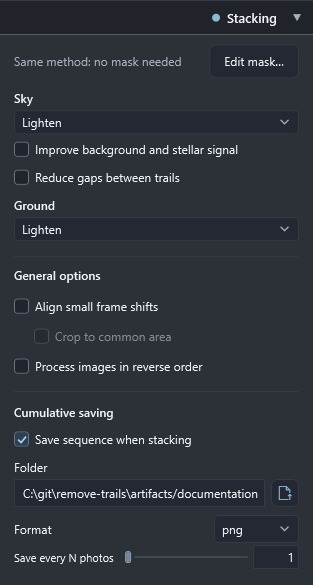
- Under Stacking → Cumulative saving, enable Save sequence when stacking.
- Choose the destination folder. Each run creates a new subfolder.
- Choose PNG to avoid further compression loss or JPG for smaller files.
- Set how often to save and click Stack. Export saves only the final image.
With 100 processed photos and an interval of 10, you get ten images. Any remaining photos produce a final stage too. A shorter interval makes for a more gradual animation but writes more files.
The sequence retains the complete calculation's order and weights. With comet, early stages can be dark because the bright head has not arrived; with both ends, central brightness arrives midway through. The progress view may show a head or center early to help inspection, so it does not necessarily represent the first saved file.
For duration, FPS or trails that disappear as the movie advances, switch to Timelapse. Cumulative saving leaves you with a series of images; it does not create the movie itself.
Result comparison
To make the difference easy to see, this example uses 41 synthetic photos processed by the app with identical development. In your photographs, the result will also depend on the sky and how you captured it.
Folder, format and saving interval
Use Save every N photos to choose how many contributions are added between saved images; the slider suggests 1 to 100. Files receive sequential numbers and always include the final stage, even if it does not complete the interval. Each click on Stack generates a new sequence, including when a result is already cached.
The sequence includes active corrections and, when alignment and cropping are enabled, uses the common framing calculated before images are saved. Allow time and disk space for this extra writing. If you need to cancel, completed stages remain available; only the unfinished file is removed.
 Enlarge screenshot ↗
 Enlarge screenshot ↗