
The project is your StarTrail Studio working file. It stores your decisions—included photos, cleanup, masks and settings—and completed stacking versions. An exported image is the separate file you can share or open in another editor.
To resume your work later:
- Save a .stproj after importing the photos.
- Save again after a lengthy trail or mask review.
- Keep the originals too. If you move the project to another computer, their paths must still be accessible.
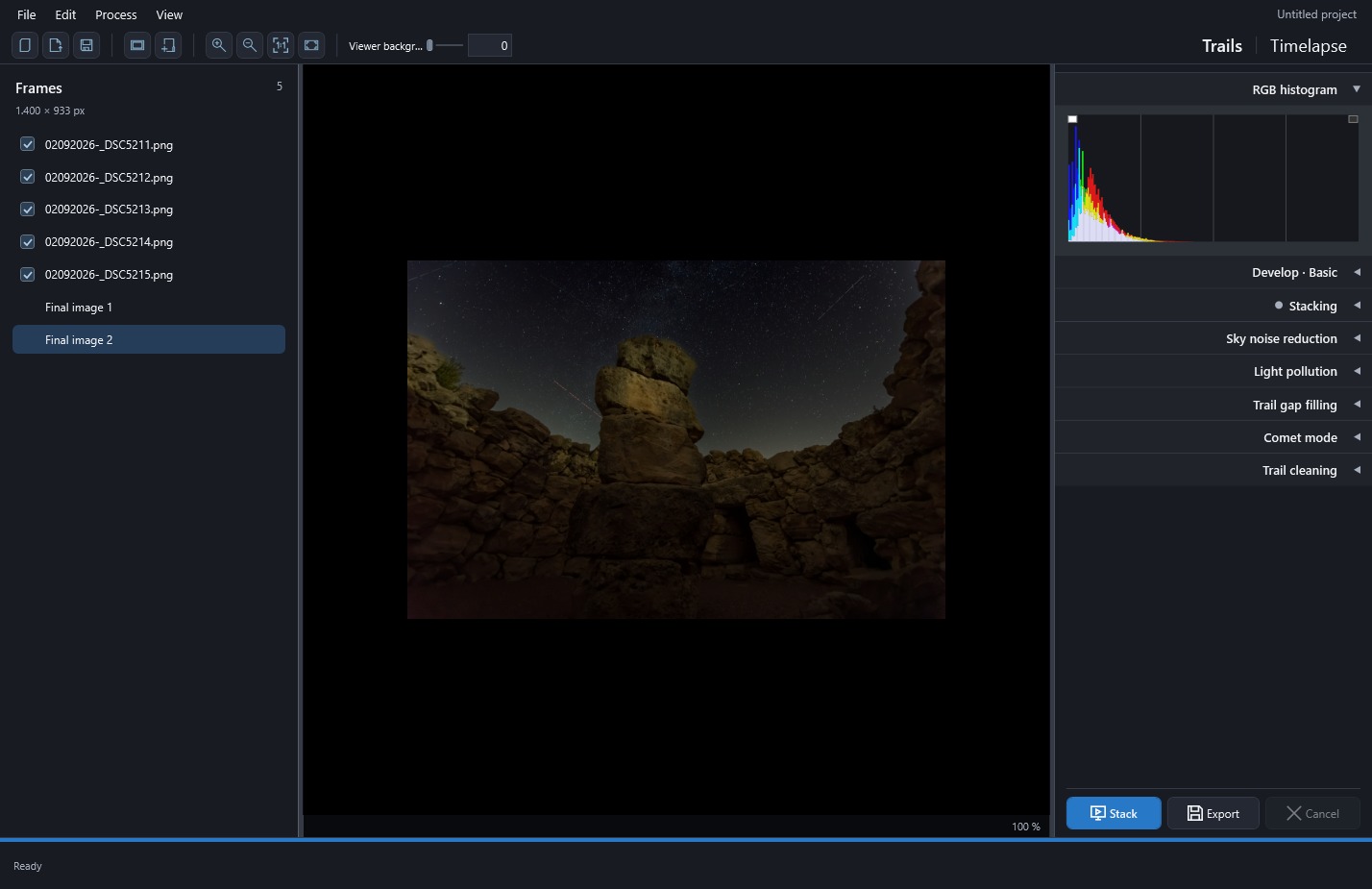
A final version is a completed stack. You can view it again, develop that version or export it without recalculating. Trying different cleanup or stacking methods still requires the originals.
Save, open and recover a project
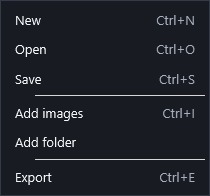
Use File → New to start another project, Open to load a .stproj and Save to create or update the file. If you registered the extension during installation, you can also choose StarTrail Studio through Open with.
The project stores source paths, inclusion choices, reviewed detections, masks and settings for both modules. Because photographs are kept separately, moving or renaming them can break those references. Keeping their locations stable will make reopening easier; the app does not offer a tool to relink all missing files at once.
When you reopen a project, saved Trails versions are ready to view without restacking. Generate the video preview again when you need it.
As you work, an asterisk beside the name reminds you of unsaved changes. If you try to create or open another project, or close the application, you can Save, Discard or Cancel. Canceling the Save As dialog also leaves the current project open.
The recovery copy is an automatic save for resuming work after an unexpected shutdown. After a few seconds without changes, it is written to %LOCALAPPDATA%\StarTrail Studio\Autosave\recovery.stproj.
If recovery is offered at startup:
- Accept it.
- Check the recovered photos, masks and settings.
- Save the project under your own name and location.
Recovery keeps settings, references and all completed Trails versions. It does not include originals or the video preview. The latest change may be missing, so keep saving during your work.
Edit → Undo or Ctrl + Z steps back through project changes during the session. History is not stored in the project file. Review the result and process again when a change requires it.
 Enlarge screenshot ↗
 Enlarge screenshot ↗