
JPG, PNG, TIFF or video?
| Need | Suggested output | What to retain or inspect |
|---|---|---|
| Share a photograph | High-quality JPG | Compression around stars and dark gradients. |
| An image without further compression loss | PNG | Output is still 8 bits per channel. |
| Continue development with more latitude | 16-bit TIFF per channel | Larger files; cannot recover source detail already clipped. |
| Watch or share a film | MP4, 1080p or 4K | Play the final file to check motion and duration. |
| Assemble or grade video elsewhere | TIFF sequence, Original when appropriate | Enough disk space and FPS chosen in the destination editor. |
| Revise processing decisions | .stproj project and originals | An exported file does not replace the project. |
What will be exported?
With a Final image selected, Export saves that version and its development even if you have changed settings for the next stack. To obtain those changes, click Stack and select the new version. Without a selected version, a required stack is calculated using current settings; distinguish this from exporting an already completed version.
Develop and export a single photo
You do not need a sequence to use development:
- Leave one original included and select its row rather than an older Final image.
- Adjust Develop and, if needed, Light pollution.
- In Trails, use methods that do not require a reference photo for this individual output.
- Click Export and choose the file.
It saves at native resolution with regional development and pollution correction from the active module. No Final image is created and no stacking is needed. With one photo, Timelapse also exports an image.
After saving, open the file and look at color and the details you worked on most. Play a movie through to the end and check its duration. Export calculates the output rather than saving a reduced screenshot of the viewer.
Save the image or movie
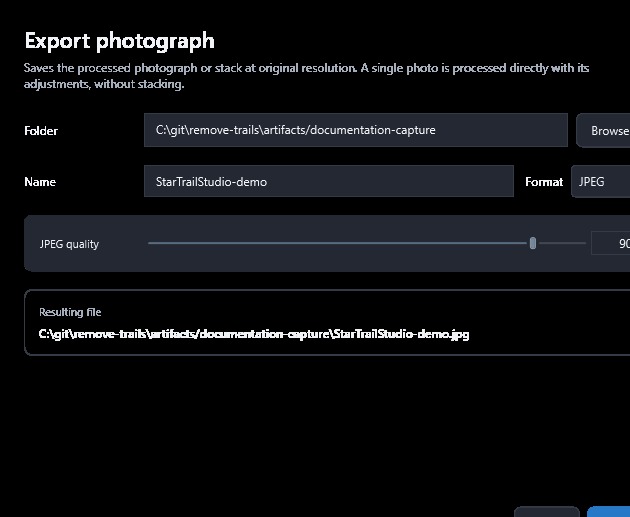
In Trails, click Export to choose the folder, name and format. JPG is practical for sharing, PNG avoids further compression loss, and TIFF retains 16 bits per channel for continued development. The dialog also provides JPEG quality and the destination path for checking before you save.
This choice matters because every Trails stack, including plain Lighten without effects, uses linear RGB with 32-bit floating-point samples. Previews and JPG/PNG outputs use 8 bits per channel, so TIFF provides more room for further editing. The app prevents overwriting imported originals, though preservation of all their EXIF metadata is not guaranteed.
To save a photograph:
- Select Trails and click Export. If there is no valid cached result, processing uses current settings.
- Click Browse… to select the folder, enter the Name and choose JPG, PNG or TIFF. Change the folder with Browse rather than typing directly in its field.
- For JPG, set JPEG quality from 10 to 100 in steps of 10; higher quality usually produces a larger file. PNG and TIFF do not use this setting. Check Resulting file and click Export to confirm. Replacing an existing output requires confirmation.
Save a movie or an image sequence
- MP4: a movie ready for playback, in H.264 without audio. Encoding uses Windows Media Foundation.
- Sequence: a folder of numbered images, one per video frame. Use it to assemble a movie or work on color in another editor.
To export from Timelapse:
- Check the range and FPS.
- For a movie, choose Export MP4… at 1080p or 4K. Dimensions are adjusted to even numbers.
- For images, choose Export sequence…, select PNG, JPG or TIFF, and choose a folder. A new subfolder is created. TIFF allows native resolution and 16 bits per channel.
If Windows cannot encode the MP4, export a sequence and assemble it in another editor.
Once you are happy with the preview, export to generate the file or sequence using current settings. If you need to cancel, completed sequence frames remain available but the partial file is removed. This prevents an incomplete MP4 from appearing as a finished export.
Completed Timelapse exports also create an .export.json file beside the video or sequence folder. It records frame order, settings and output details so you can review how the result was generated. It is not another video and does not contain the originals. Keep it with your project and application log when investigating an export issue.
 Enlarge screenshot ↗